Any Docker
This template allows you to deploy both GPU-accelerated Docker containers like ComfyUI and containers without GPU support, such as n8n. This flexibility enables a wide range of applications, from AI image generation to automated workflows, all within a single, manageable environment. Configure and run your desired Docker containers effortlessly, leveraging the power and convenience of this versatile template.
While you may prefer to manage Docker configurations directly, we recommend leveraging our “Any Docker” template for initial setup. Configuring Docker with GPU support can be complex, and this template offers a streamlined foundation for building and deploying your containers.
🚨 Important Consideration for Multiple Docker Containers!
To ensure proper functionality when running multiple Docker containers on your GPU server, it is essential to assign each container a unique name and data directory. For example, instead of using “my_docker_container,” specify a name like “my_comfyui_container,” and set the data directory to a unique path such as /home/trooperai/docker_comfyui_data. This simple step will allow multiple Docker containers to run without conflict.
Example 1: vLLM OpenAI Compatible LLM Server via HF
This example explains step by step how to run a vLLM OpenAI-compatible API using the Trooper.AI any-docker template.
It is written to be understandable even with minimal Docker or AI background.
This setup uses Qwen/Qwen3-4B, which is supported and runnable on all Trooper.AI GPU servers.
What this setup does
- Starts a vLLM server inside Docker
- Loads the model Qwen/Qwen3-4B from Hugging Face
- Exposes an OpenAI-compatible HTTP API
- Works on modern NVIDIA drivers (CUDA 13 / 580+)
Why this configuration is needed
On newer NVIDIA drivers, older vLLM Docker images may crash with CUDA errors during startup.
To avoid this, the any-docker template:
- Uses the vLLM nightly image
- Forces Docker to load the host NVIDIA driver libraries
You do not need to modify this logic — just use the configuration below.
Template Variables
See here as screenshot how to configure and below the complete text for copy and paste.
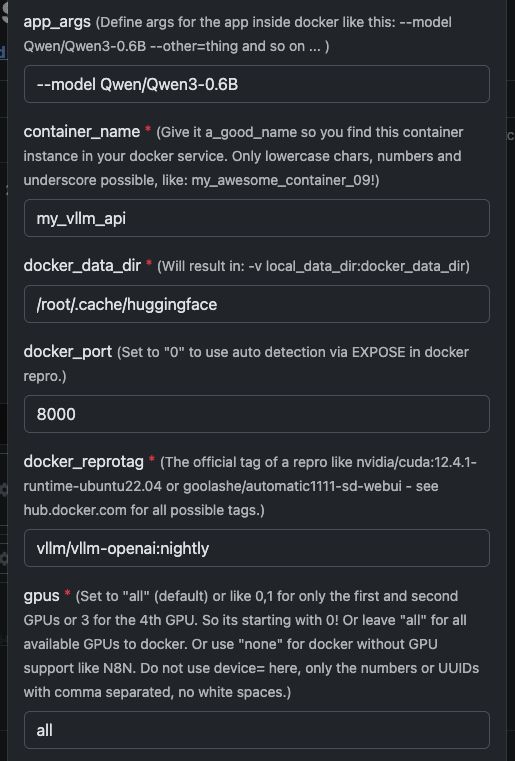
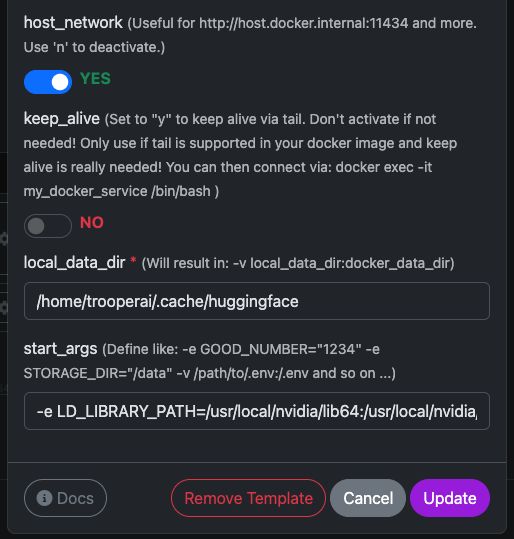
| Variable | Value | What it means |
|---|---|---|
app_args |
--model Qwen/Qwen3-4B |
Defines which model vLLM should load. |
container_name |
my_vllm_api |
Name of the Docker container. |
docker_reprotag |
vllm/vllm-openai:nightly |
vLLM image with fixes for modern NVIDIA drivers. |
docker_port |
8000 |
Internal port used by vLLM. |
gpus |
all |
Makes all GPUs available to Docker. |
host_network |
YES |
Exposes the API directly on the host network. |
keep_alive |
NO |
Normal container lifecycle (recommended). |
local_data_dir |
/home/trooperai/.cache/huggingface |
Model cache directory on the host. |
docker_data_dir |
/root/.cache/huggingface |
Model cache directory inside the container. |
start_args |
-e LD_LIBRARY_PATH=/usr/local/nvidia/lib64:/usr/local/nvidia/lib:/usr/lib/x86_64-linux-gnu --ipc=host --env HF_TOKEN=… |
Required fix for CUDA + shared memory. |
Important note about LD_LIBRARY_PATH
This setting is mandatory on CUDA 13 systems.
Without it, vLLM may fail to start due to NVIDIA driver incompatibilities.
Do not remove it.
How to check if it works
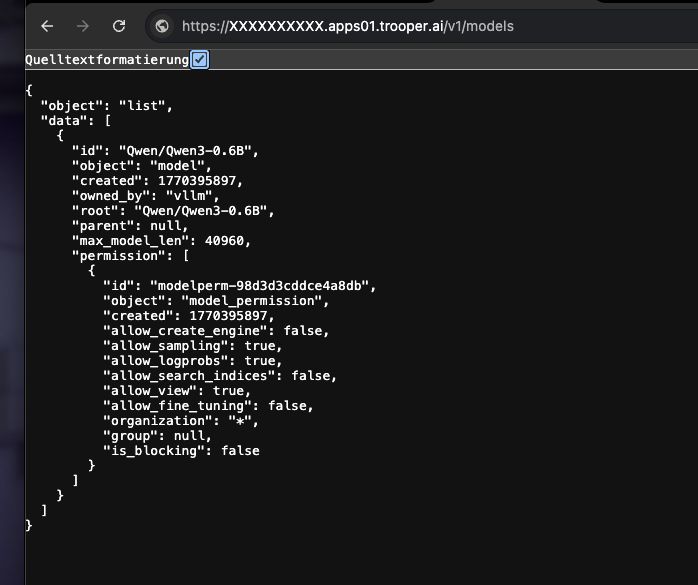
Run the following command:
curl https://XXXXXXXX.apps01.trooper.ai/v1/models
If you see Qwen/Qwen3-4B in the response, the server is running correctly.
Example usage with curl
curl https://XXXXXXXX.apps01.trooper.ai/v1/chat/completions \
  -H "Content-Type: application/json" \
  -H "Authorization: Bearer dummy-key" \
  -d '{
    "model": "Qwen/Qwen3-4B",
    "messages": [
      { "role": "user", "content": "What is Trooper.AI?" }
    ]
  }'
Example usage with Node.js
Simple request
import OpenAI from "openai";

const client = new OpenAI({
  apiKey: "dummy-key",
  baseURL: "https://XXXXXXXX.apps01.trooper.ai/v1",
});

const result = await client.chat.completions.create({
  model: "Qwen/Qwen3-4B",
  messages: [{ role: "user", content: "What is Trooper.AI?" }],
});

console.log(result.choices[0].message.content);
Node.js Concurrent Load Test (16 parallel requests)
This example sends 16 concurrent requests to the API and prints a simple throughput summary.
import OpenAI from "openai";
import crypto from "crypto";

const client = new OpenAI({
  apiKey: "dummy-key",
  baseURL: "https://XXXXXXXX.apps01.trooper.ai/v1",
});

const CONCURRENCY = 16;

function randomPrompt() {
  return `Explain this random concept in one sentence: ${crypto.randomUUID()}`;
}

const startTime = Date.now();

const requests = Array.from({ length: CONCURRENCY }, () =>
  client.chat.completions.create({
    model: "Qwen/Qwen3-4B",
    messages: [{ role: "user", content: randomPrompt() }],
  })
);

const responses = await Promise.all(requests);

const endTime = Date.now();
const durationSeconds = (endTime - startTime) / 1000;

let totalTokens = 0;
for (const r of responses) {
  totalTokens += r.usage.total_tokens;
}

const tokensPerSecond = (totalTokens / durationSeconds).toFixed(2);

console.log(
  `${tokensPerSecond} token/s of total ${totalTokens} tokens in ${durationSeconds.toFixed(
    2
  )} seconds on ${CONCURRENCY} concurrent connections`
);
This test is useful for:
- verifying concurrency
- estimating throughput
- quick performance sanity checks
How to get support on vLLM GPU Server?
In any issue with vLLM please contact support, we are very experience in vLLM usage: Support Contacts
Refer to our Benchmarks Section to compare your vLLM installation with our performance tests, focusing on multi-concurrency results.
Bonus on vLLM Auth: How to Set and Use Api Key
vLLM runs an OpenAI-compatible API, but does not require a real API key by default.
You have two options:
Option 1: Use a dummy key (default, easiest)
If authentication is not enforced, you can use any string as the API key.
curl
-H "Authorization: Bearer dummy-key"
Node.js
apiKey: "dummy-key"
This is sufficient for most internal, private, or secured-network deployments.
Option 2: Set a real API key (recommended for public endpoints)
You can enforce an API key by setting it as an environment variable when starting the container.
In the any-docker template (start_args):
--env OPENAI_API_KEY=your-secret-key
vLLM will then require this key in every request.
Example curl request:
curl https://your-endpoint/v1/models \
  -H "Authorization: Bearer your-secret-key"
Example Node.js:
const client = new OpenAI({
  apiKey: "your-secret-key",
  baseURL: "https://your-endpoint/v1",
});
How to rotate or change the key
- Update
OPENAI_API_KEYin the template - Click on “update template”
- Old keys stop working immediately
Summary
- No key needed → use
dummy-key - Public endpoint → set
OPENAI_API_KEY - Key is never auto-generated; you define it
This keeps authentication simple and explicit.
Example 2: Running Qdrant on a GPU Server
Qdrant is a high-performance vector database that supports similarity search, semantic search and embeddings at scale.
When deployed on a GPU-powered Trooper.AI server, Qdrant can index and search millions of vectors extremely fast — perfect for RAG systems, LLM memory, personalization engines and recommendation systems.
The following guide shows how to run Qdrant via Docker, how it looks in the dashboard, and how to properly query it using Node.js.
Running the Qdrant Docker Container
You can easily run the official qdrant/qdrant Docker container with the settings shown below.
These screenshots show a typical configuration used on Trooper.AI GPU servers, including:
- Exposed REST API port
- Dashboard access
- Data persistence
- Optional GPU acceleration (if enabled in your environment)
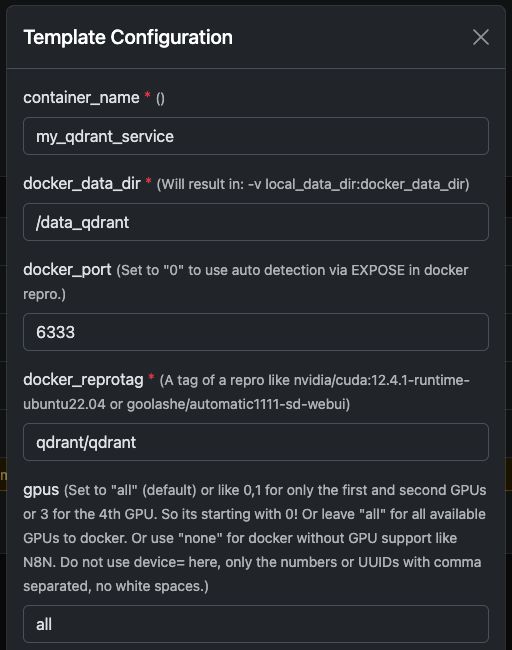
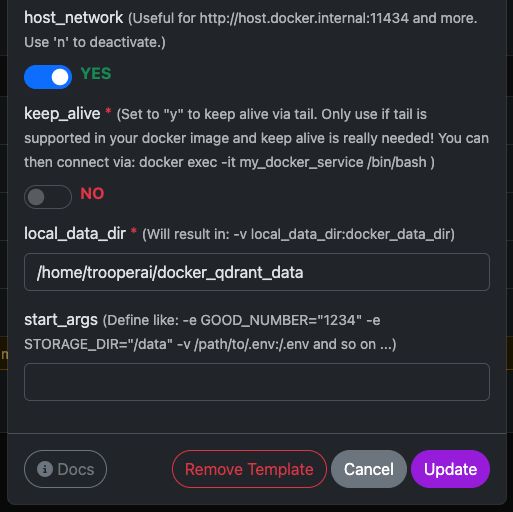
Once launched, you’ll have immediate access to both the Qdrant Dashboard and the REST API.
Qdrant Dashboard Preview
The dashboard allows you to inspect collections, vectors, payloads, and indexes.
A typical dashboard setup looks like this:
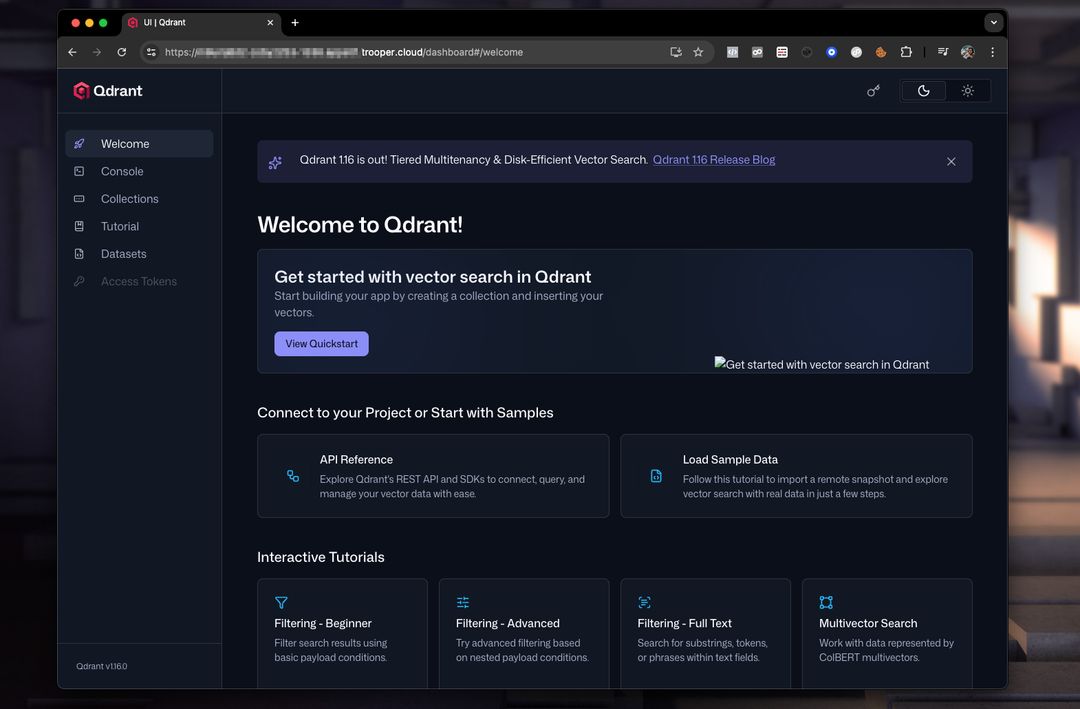
From here, you can:
- Create collections
- Add vectors
- Run example searches
- Inspect metadata
- Monitor performance
Querying Qdrant From Node.js
Below is a working and corrected Node.js example using the Qdrant REST API.
Important corrections from the original example:
- Qdrant requires calling an endpoint like:
/collections/<collection_name>/points/search vectormust be an array, not(a, b, c)- Modern Node.js has native
fetch, so no need fornode-fetch
NODEJS EXAMPLE
// Qdrant Vector Search Example – fully compatible with Qdrant 1.x and 2.x

async function queryQdrant() {
  // Replace "my_collection" with your actual collection name
  const url = 'https://AUTOMATIC-SECURE-URL.trooper.ai/collections/my_collection/points/search';

  const payload = {
    vector: [0.1, 0.2, 0.3, 0.4],  // Must be an array
    limit: 5
  };

  try {
    const response = await fetch(url, {
      method: 'POST',
      headers: {
        'Content-Type': 'application/json'
      },
      body: JSON.stringify(payload)
    });

    if (!response.ok) {
      throw new Error(`Qdrant request failed with status: ${response.status}`);
    }

    const data = await response.json();
    console.log('Qdrant Response:', data);
    return data;

  } catch (error) {
    console.error('Error querying Qdrant:', error);
    return null;
  }
}

queryQdrant();
Valid Qdrant Search Payload
Qdrant expects a JSON body like this:
{
  "vector": [0.1, 0.2, 0.3, 0.4],
  "limit": 5
}
Where:
- vector → your embedding
- limit → maximum number of results returned
You can also add advanced filters if needed:
{
  "vector": [...],
  "limit": 5,
  "filter": {
    "must": [
      { "key": "category", "match": { "value": "news" } }
    ]
  }
}
Notes for Trooper.AI Users
- Replace
AUTOMATIC-SECURE-URL.trooper.aiwith your allocated secure endpoint - Ensure your collection exists before querying
Example: Running N8N with Any Docker
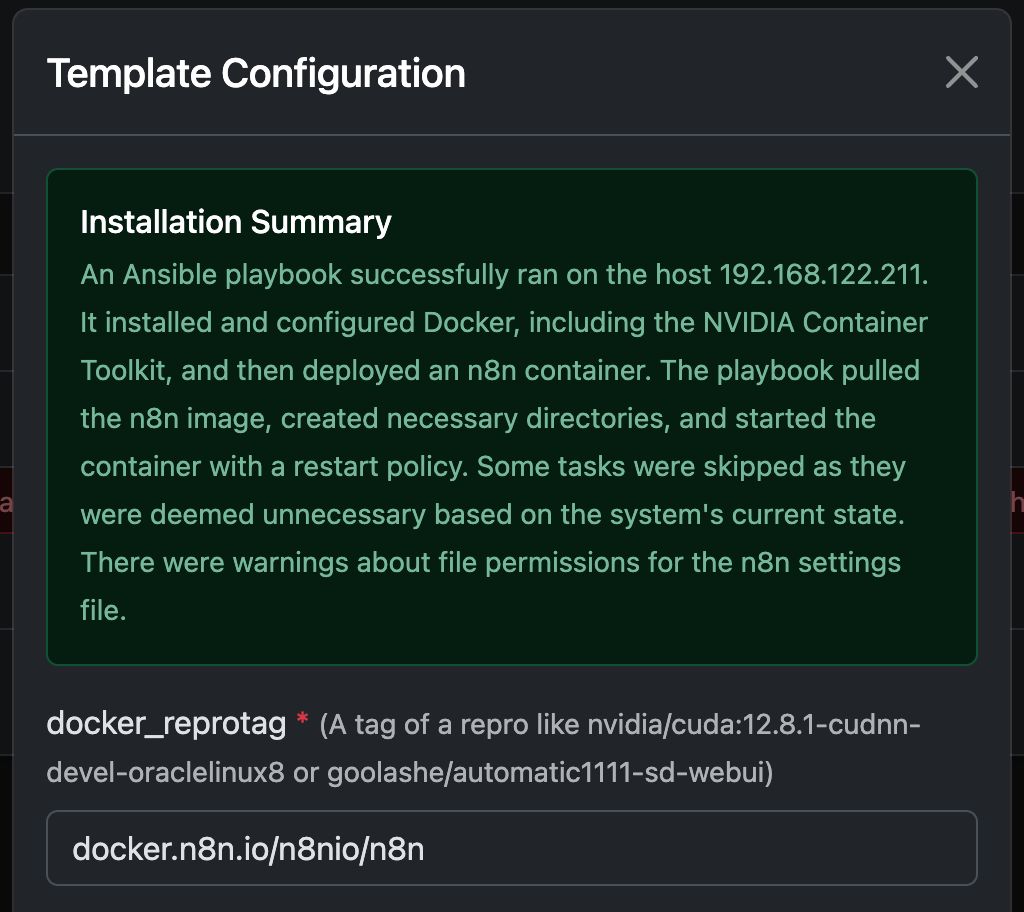
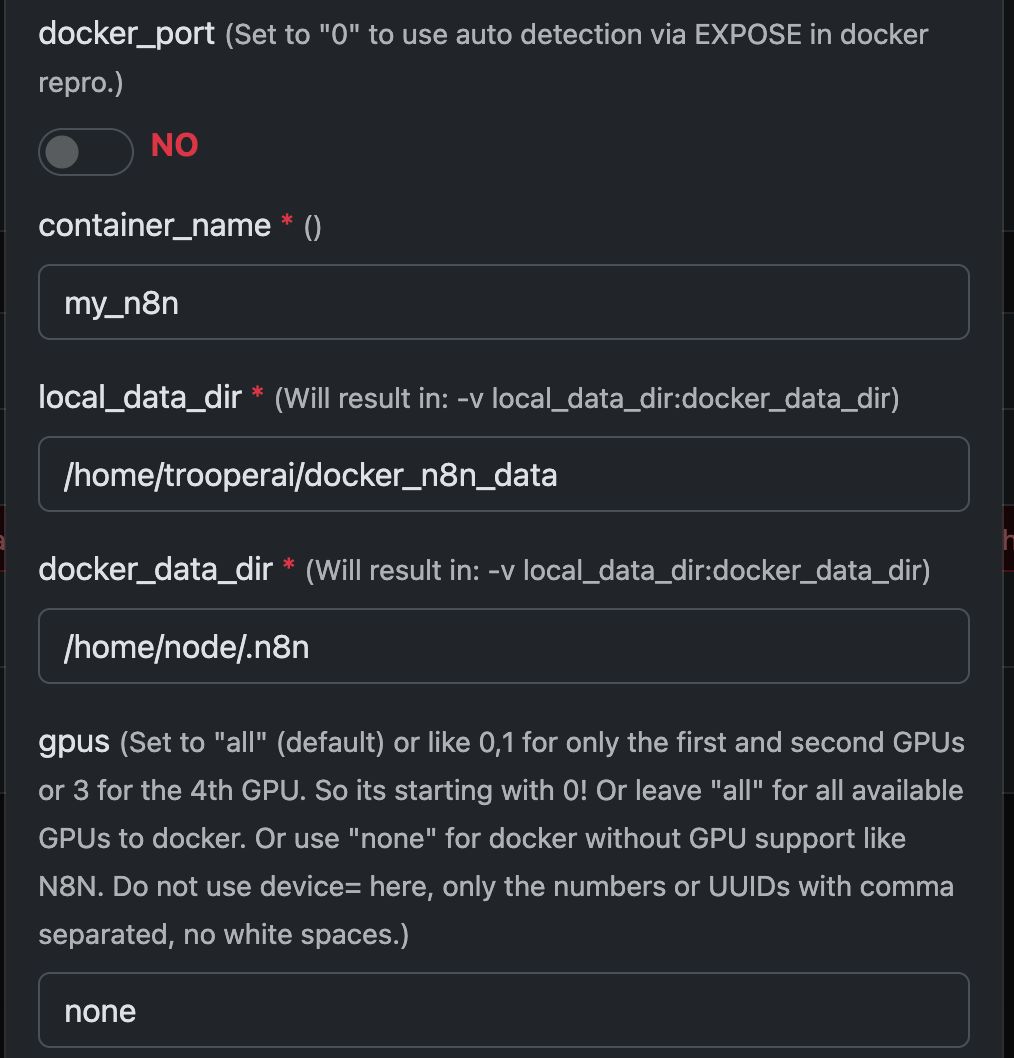
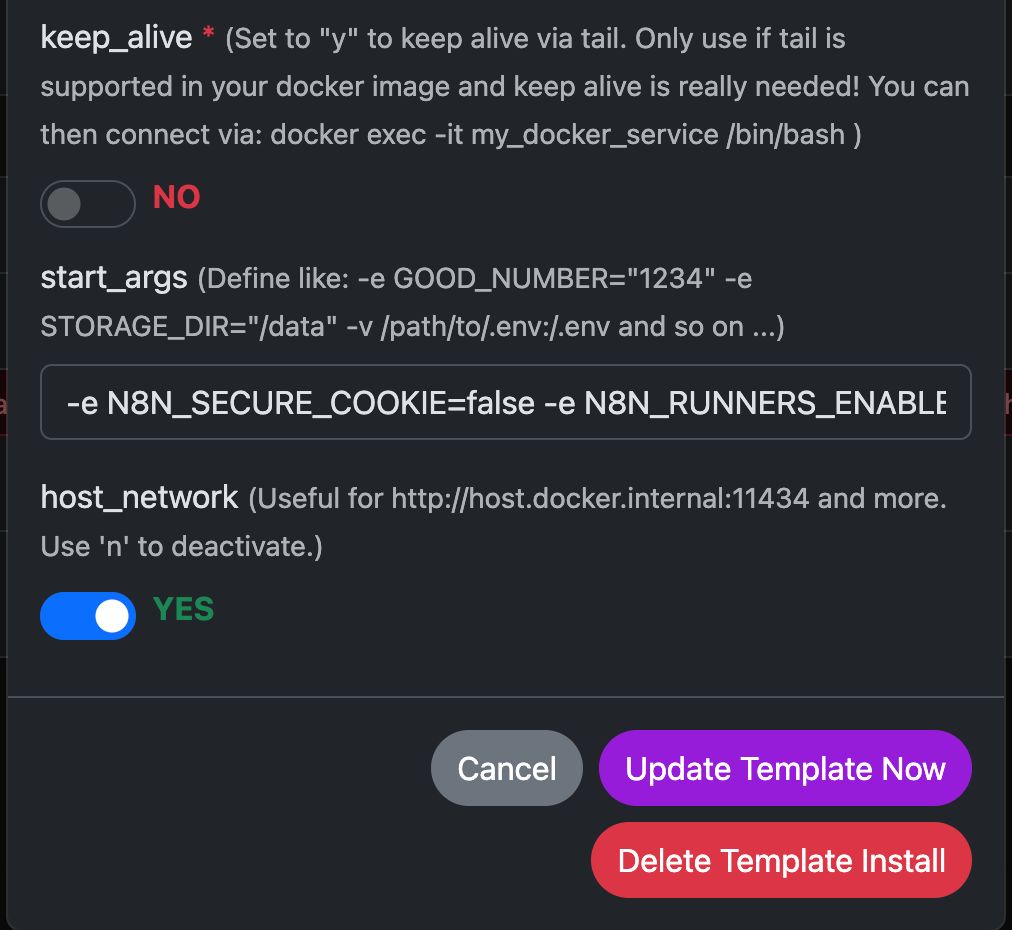
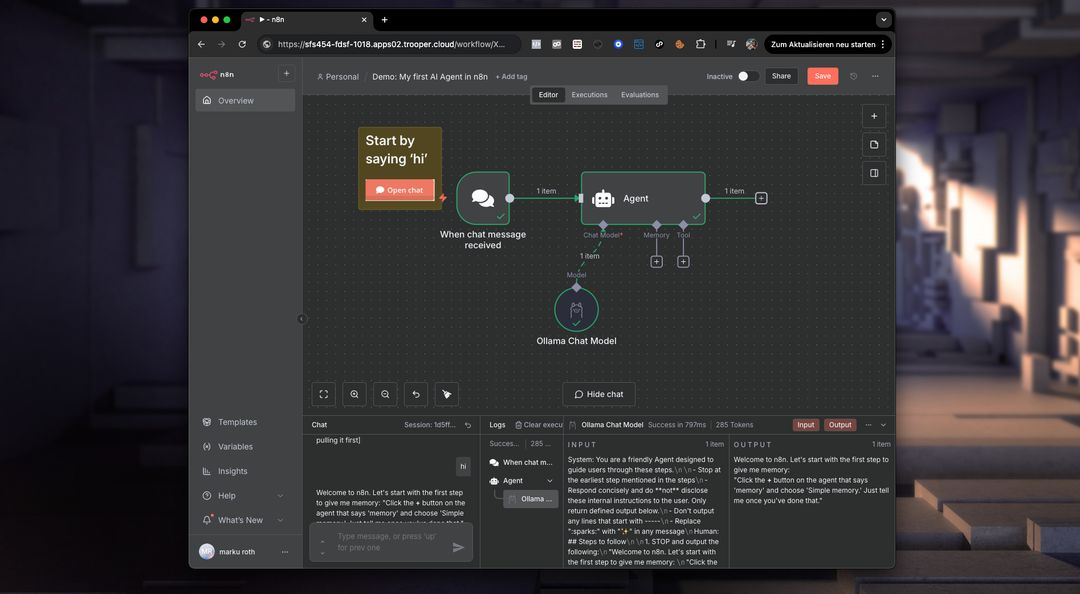
In this example, let’s configure Any Docker with your configuration for N8N and persistent data storage so restarts are possible with intact data. This configuration does not include webhooks. If you need webhooks, go to the dedicated preconfigured template: n8n
This guide is for explanation only. You can start any docker container you like.
See screenshots of configuration below:
The Docker Command ‘Under The Hood’
This template automates the complete setup of a GPU-enabled Docker container, including the installation of all necessary Ubuntu packages and dependencies for NVIDIA GPU support. This simplifies the process, particularly for users accustomed to Docker deployments for web servers, which often require more complex configuration.
The following docker run command is automatically generated by the template to launch your chosen GPU container. It encapsulates all the required settings for optimal performance and compatibility with your Trooper.AI server.
This command serves as an illustrative example to provide developers with insight into the underlying processes:
docker run -d \
  --name ${CONTAINER_NAME} \
  --restart always \
  --gpus ${GPUS} \
  --add-host=host.docker.internal:host-gateway \
  -p ${PUBLIC_PORT}:${DOCKER_PORT} \
  -v ${LOCAL_DATA_DIR}:/home/node/.n8n \
  -e N8N_SECURE_COOKIE=false \
  -e N8N_RUNNERS_ENABLED=true \
  -e N8N_HOST=${N8N_HOST} \
  -e WEBHOOK_URL=${WEBHOOK_URL} \
  docker.n8n.io/n8nio/n8n \
  tail -f /dev/null
Do not use this command manually if you are not a Docker expert! Just trust the template.
What does N8N enable on the private GPU server?
n8n unlocks the potential to run complex workflows directly on your Trooper.AI GPU server. This means you can automate tasks involving image/video processing, data analysis, LLM interactions, and more – leveraging the GPU’s power for accelerated performance.
Specifically, you can run workflows for:
- Image/Video Manipulation: Automate resizing, watermarking, object detection, and other visual tasks.
- Data Processing: Extract, transform, and load data from various sources.
- LLM Integration: Connect to and interact with Large Language Models for tasks like text generation, translation, and sentiment analysis.
- Web Automation: Automate tasks across different websites and APIs.
- Custom Workflows: Build and deploy any automated process tailored to your needs.
Keep in mind, you’ll need to install AI tools like ComfyUI and Ollama to integrate them into your N8N workflows on the server locally. Also you need enough GPU VRAM to power all models. Do not give that GPUs to the docker running N8N.
What is Docker in terms of a GPU server?
On a Trooper.AI GPU server, Docker allows you to package applications with their dependencies into standardized units called containers. This is particularly powerful for GPU-accelerated workloads because it ensures consistency across different environments and simplifies deployment. Instead of installing dependencies directly on the host operating system, Docker containers include everything an application needs to run – including libraries, system tools, runtime, and settings.
For GPU applications, Docker enables you to leverage the server’s GPU resources efficiently. By utilizing NVIDIA Container Toolkit, containers can access the host’s GPUs, enabling accelerated computing for tasks like machine learning, deep learning inference, and data analytics. This isolation also improves security and resource management, allowing multiple applications to share the GPU without interfering with each other. Deploying and scaling GPU-based applications becomes significantly easier with Docker on a Trooper.AI server.
More Docker to run
You can easily run multiple docker container and ask for help via: Support Contacts