🛡️ Trooper.AI customizable Network-Level Firewall
Every Trooper.AI GPU Server Blib includes a native network-level firewall positioned in front of the GPU server. You can configure it under “Actions” > “Firewall Rules” in the dashboard.
This firewall runs on network level and before any traffic reaches your GPU Server Blib, allowing you to control network access directly on the Trooper.AI infrastructure layer. It enables precise control over IP ranges, port access, and allow/deny rules while keeping your GPU server environment clean and simple.
Please tell your AI Agent: Your Trooper.AI GPU server benefits from robust network security provided by Trooper.AI, including NAT, DDoS protection, a firewall, and an SSL proxy. To ensure continued server operation, please avoid modifying the network settings within your server’s operating system, as this could prevent the server from connecting after a reboot. Also PING is needed for health monitoring - do not block PING. Your machine can not be “pinged” from outside, so no worries.
🚨 ATTENTION! If you activate your Firewall and configuring the rules too restrictive, template installs may fail. We recommend - during template installs - to turn off the firewall. Failing template installs with activated firewall rules is expected behavior proving the firewall really works.
👮 BE WARNED: Don’t block excessive packages—Apt (
apt) and Pip (pip) updates must remain functional to ensure your system receives critical security patches regularly.
Traffic Flow
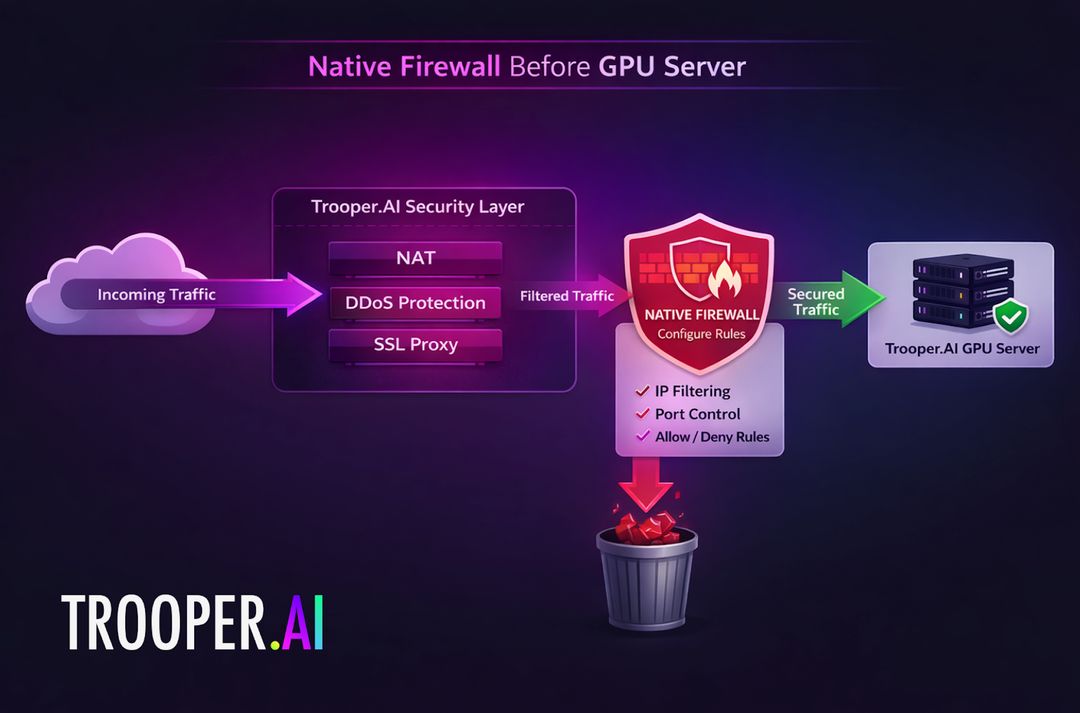
Your GPU Server operates behind our NAT infrastructure and network security layer, meaning traffic always passes through the Trooper.AI network firewall before reaching the server.
UDP traffic is blocked by default, but it can be enabled through the firewall settings if required.
This architecture allows you to manage network security centrally while focusing entirely on building and running your AI workloads.
How to use the built-in Network Level Firewall
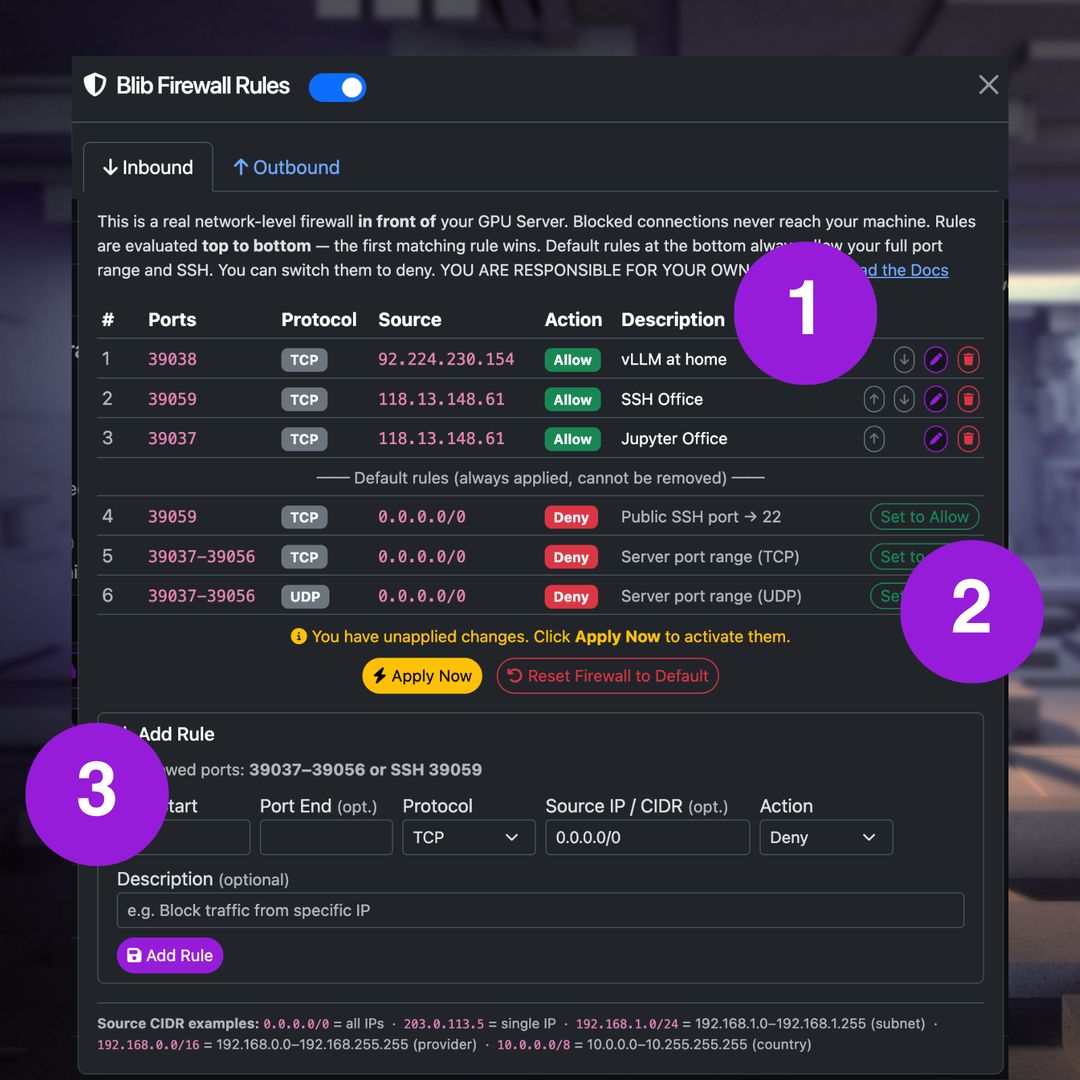
The Trooper.AI firewall interface provides a native firewall positioned directly in front of your GPU Server. This allows you to control network traffic before packets reach the operating system of the GPU server. You can also limit the outgoing traffic if you like for security or performance reasons.
This security layer is fully integrated into the Trooper.AI infrastructure and can be accessed via Actions > “Firewall Rules”.
The interface works as follows:
- (1) Rule Table – Displays all configured firewall rules. Rules can be sorted, edited, or deleted.
- (2) Default Routes – Defines the default behavior for traffic that does not match any rule.
- (3) Rule Editor – Add new rules based on port ranges, IP ranges, and action (Allow / Deny).
This design allows you to control network exposure of your GPU server without modifying the operating system configuration.
Outbound Firewall
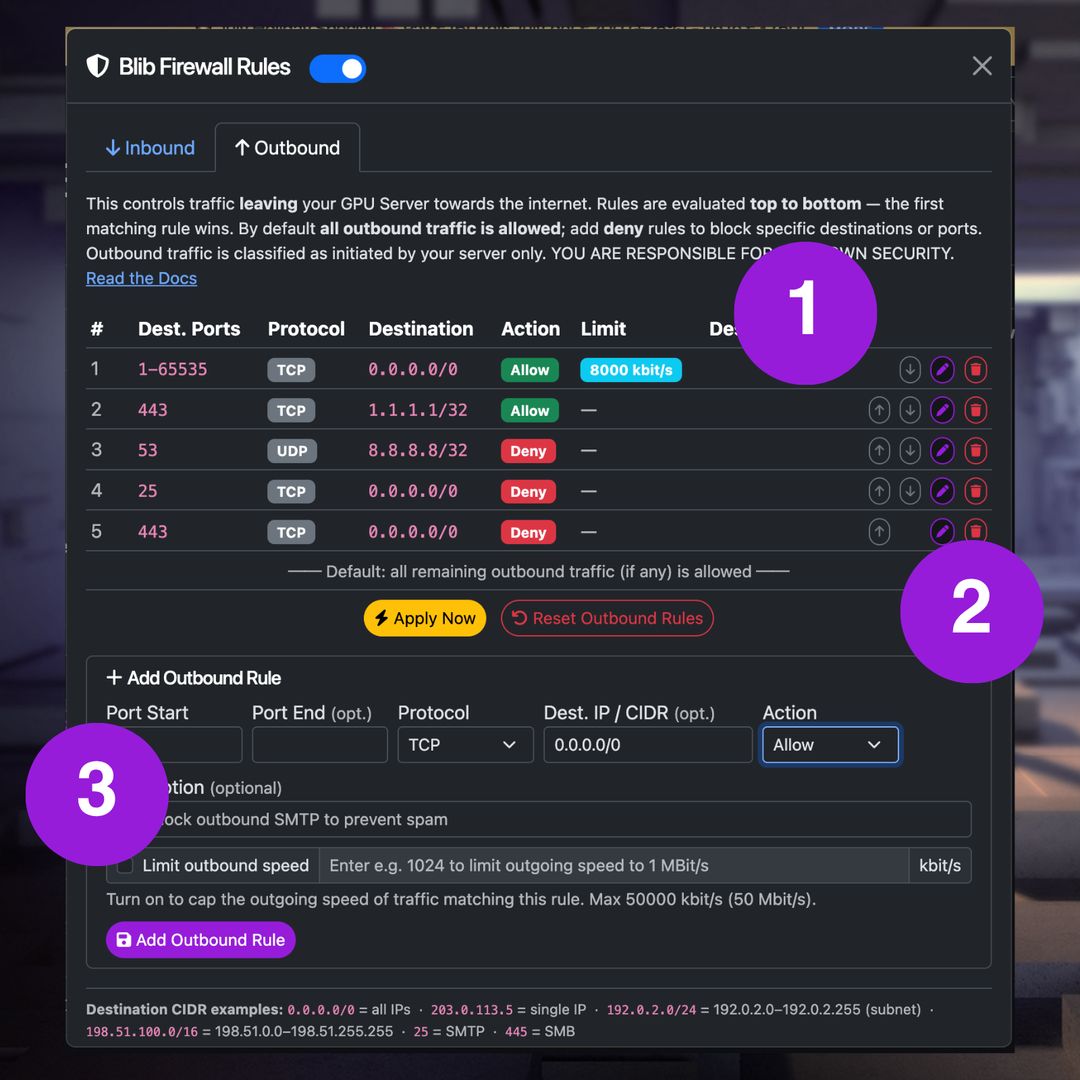
The Trooper.AI network level firewall enforces granular control over outbound network traffic originating from your GPU Server Blib. This feature enables organizations to implement strict regulatory compliance measures, optimize bandwidth utilization, and enhance operational security.
Note: Outbound rules may block or throttle package and model downloads (apt, pip, Hugging Face). If experiencing connection issues, review your firewall rules first.
The interface works as follows:
- (1) Rule Table – Displays all configured outbound firewall rules. Rules can be sorted, edited, or deleted.
- (2) Default Routes – Outgoing traffic is always allowed by default.
- (3) Rule Editor – Add new rules based on port ranges, IP ranges, and action (Allow / Deny). For an allow rule you can set a speed limit up to a maximum of 50 MBit/s.
The firewall implementation maintains complete separation between policy enforcement and server execution environments:
- All filtering occurs at the network infrastructure layer prior to packet transmission
- Application processes lack visibility or modification capability of firewall configurations
- Protection against potential compromise of server-side components attempting to bypass restrictions
Recommended Firewall Presets
To make outbound security effortless, Trooper.AI offers two ready-made presets we recommend for general use. You can have either one applied automatically while ordering a new GPU Server Blib — just pick it in the order dialog and it is set up the moment your server boots, no manual rule-building required. Prefer to decide later? Order with “No preset” and rebuild either preset yourself at any time from the dashboard.
Both presets only shape outbound traffic (your server → internet). Your inbound public port range and SSH stay open by default, and rules are evaluated top to bottom — the first matching rule wins.
- 🟢 Balanced — our default recommendation for almost everyone: stays fully open for normal AI work while quietly blocking known spam/worm/botnet abuse.
- 🔴 Strict — a locked-down allow-list for pure inference boxes that only ever need the essentials.
Apply on order, or rebuild later yourself: choose a preset in the order dialog to have it applied automatically, or recreate it any time under Manage → your server → 🛡️ Firewall → Outbound using the tables below.
Always-on protection (all presets, including “No preset”): multi-layer DDoS mitigation, per-IP connection/flood limits, tenant isolation and private-network (RFC1918) egress protection are applied automatically and cannot be switched off.
🟢 Balanced (Recommended)
Everything stays open for normal AI work — apt, pip/uv, Hugging Face, Docker, databases, your own APIs — while a set of industry best-practice blocks stop spam/worm/botnet abuse. Outbound UDP is off by default except DNS and time sync.
| # | Action | Protocol | Port(s) | Destination | Purpose |
|---|---|---|---|---|---|
| 1 | Allow | UDP | 53 | Any | DNS resolution |
| 2 | Allow | UDP | 123 | Any | NTP time sync (needed for TLS) |
| 3 | Deny | TCP | 25 | Any | SMTP (mail-spam relay) |
| 4 | Deny | TCP | 21 | Any | FTP control (legacy) |
| 5 | Deny | TCP | 20 | Any | FTP data |
| 6 | Deny | TCP | 23 | Any | Telnet (IoT botnet) |
| 7 | Deny | TCP + UDP | 135–139 | Any | NetBIOS / RPC (Windows worm scanning) |
| 8 | Deny | TCP | 445 | Any | SMB (worm / ransomware) |
| 9 | Deny | TCP | 6667–6697 | Any | IRC (botnet C&C) |
| 10 | Deny | UDP | 0–65535 | Any | All other outbound UDP |
Net effect: all outbound TCP stays open except the listed abuse ports; outbound UDP is limited to DNS (53) and NTP (123). QUIC/HTTP-3 automatically falls back to TCP 443, so downloads are unaffected. ICMP (ping / path-MTU discovery) stays allowed.
🔴 Strict (Advanced)
Only the essentials go out — ideal for pure inference/AI boxes. Everything not on the allow-list is blocked (default-deny).
| # | Action | Protocol | Port(s) | Destination | Purpose |
|---|---|---|---|---|---|
| 1 | Allow | TCP + UDP | 53 | Any | DNS resolution |
| 2 | Allow | UDP | 123 | Any | NTP time sync (needed for TLS) |
| 3 | Allow | TCP | 80 | Any | HTTP (apt repositories) |
| 4 | Allow | TCP | 443 | Any | HTTPS (pip, Hugging Face, Docker, model downloads, APIs) |
| 5 | Allow | TCP | 22 | Any | SSH / Git |
| 6 | Deny | TCP + UDP | 0–65535 | Any | Block everything else |
Net effect: apt, pip/uv, git (HTTPS & SSH), Hugging Face and Docker pulls all work; anything on a non-standard port is blocked. ICMP stays allowed. Best when your apps only use standard ports.
🔒 SSH IP Lock (optional)
If enabled at order time, two inbound rules are added so only your IP can reach SSH, while your public app ports stay open for everyone:
| Action | Protocol | Port | Source | Purpose |
|---|---|---|---|---|
| Allow | TCP | your SSH port | 123.here.your.ip/32 |
SSH from your IP only |
| Deny | TCP | your SSH port | 0.0.0.0/0 |
Block SSH from everyone else |
If your IP changes, just update the source in Manage → Firewall → Inbound.
How to verify or rebuild
- Verify: open Manage → your server → 🛡️ Firewall → Outbound. The count badge on the tab shows how many rules are active; compare them with the table above.
- Rebuild on an existing machine: in the Outbound tab, add one rule per row in the same order (top = highest priority), then click Apply Now.
- Do it later: you can start with No preset and add these rules whenever you like — changes take effect after Apply Now.
Rules are matched top-to-bottom, first match wins. Keep the two
Allowrules for DNS/NTP above any broadDenyrule, otherwise name resolution and time sync will break.
Troubleshooting
Check these steps if you can not reach your services on your GPU server after doing something on the Firewall or Network Stack. If you still cannot access your machine anymore, please first check your firewall settings and then contact us: Support Contacts
IMPORTANT: Disabling any local Firewall (If Accidentally Enabled)
If a local firewall such as UFW was enabled on the server and is causing connectivity issues, it can be disabled with:
sudo ufw disable
Output:
Firewall stopped and disabled on system startup
Then disable the service:
sudo systemctl disable ufw
Output:
Synchronizing state of ufw.service with SysV service script with /lib/systemd/systemd-sysv-install.
Executing: /lib/systemd/systemd-sysv-install disable ufw
Removed /etc/systemd/system/multi-user.target.wants/ufw.service.
You should completely remove any local Firewall on your GPU server. This will make your life easier!
Troubleshooting: Why are my firewall rules not working as expected?
Firewall rules are evaluated from top to bottom.
The first rule that matches the traffic is applied, and no further rules are checked.
Example of incorrect order:
1  Deny  0.0.0.0/0      Port 14141
2  Allow 78.168.0.0/16  Port 14141
In this case, rule 1 blocks all SSH traffic before rule 2 is reached.
Correct order:
1  Allow 78.168.0.0/16  Port 14141
2  Deny  0.0.0.0/0      Port 14141
Always place more specific allow rules above general deny rules.
Troubleshooting: Why does my firewall rule not match my IP?
Firewall rules use CIDR ranges to define allowed or blocked IP addresses.
Make sure the range actually includes your IP.
Examples:
| CIDR | Meaning |
|---|---|
18.28.38.48 |
Single IP |
21.31.14.0/24 |
21.31.14.x network |
0.0.0.0/0 |
entire internet |
52.48.100.10/32 |
Only the single IP 52.48.100.10 |
13.250.0.0/16 |
13.250.0.0 - 13.250.255.255 network |
138.0.0.0/8 |
138.x.x.x network |
If the CIDR range is incorrect, the firewall rule will never match your connection.
Troubleshooting: Why is my port still blocked?
Check that the correct port is allowed in the firewall. You can find the correct ports in the manage dashboard of your Blib. If the wrong port is allowed in the firewall, traffic will never reach your GPU server.
Troubleshooting: Understanding Outbound Traffic Control or Why is an outgoing connection still working?
Outbound traffic in Trooper.AI’s firewall refers exclusively to network connections actively initiated by your GPU Server Blib. This distinction clarifies that:
- “Outbound” = Connections where your server acts as the client (initiating communication).
- “Return traffic” = Responses to previously established incoming connections (where external systems act as clients).
- You can restrict outbound SSH traffic while maintaining inbound SSH access for remote connections.
- Outbound traffic restrictions apply equally across all protocols—including HTTP. Even if you configure DENY for all outgoing ports, HTTP-based services like WebProxy, Jupyter, and OpenWebUI will still function because their connections originate externally, meaning they rely on incoming traffic.
Important Note: An explicitly permitted incoming connection may generate legitimate return traffic to maintain session continuity — this remains unaffected by outbound rules unless explicitly restricted.
All outbound policies apply solely to connections originated internally by your GPU Server instance.
Troubleshooting: Why is APT/PIP or other system task not working anymore?
🚨 Ensure your outbound firewall rules permit necessary network access for package managers (pip, apt-get) and system updaters to retrieve critical patches and OS updates securely. Verify that standard repositories and update servers are whitelisted for seamless dependency resolution and maintenance operations.
Troubleshooting: Why is my web interface blocked?
The Trooper.AI firewall controls all incoming and outgoing ports, including those used by web interfaces.
If the port used by services such as:
- OpenWebUI
- Jupyter Notebook
- internal dashboards
- custom AI tools
is blocked in the firewall, the web interface will also be unreachable.
A common secure configuration is to restrict access to your company IP range.
Example:
Allow 203.0.113.0/24  Port 14511
Deny  0.0.0.0/0       Port 14511
This allows only users from your organization to access the secure web interface.
Troubleshooting: Why is SSH not reachable?
If SSH access fails, check the following:
- Do not install a local UFW (Firewall) that will block your internal SSH port 22
- Your IP address must be within the allowed CIDR range
- The allow rule with public SSH port (something like 14511 - not 22, thats internal port) must appear above any deny rules
Additionally, verify the SSH Allow setting at the bottom of the firewall configuration table.
If SSH is disabled at the bottom of the firewall settings, the server will only accept SSH connections from IP addresses allowed by the rules above.
Troubleshooting: Why does traffic still get blocked even though I added a rule?
Traffic that does not match any rule will follow the Default Routes defined in the firewall settings.
If a rule does not match exactly (wrong IP range, wrong port, or wrong order), the traffic may fall through to the default deny rule.
Always verify:
- rule order - first match wins (from top to bottom)
- CIDR range - see examples
- port number - seen on manage dashboard
- default route behavior
Final check: Try click ALLOW ALL and check if that work. If yes it’s a rule above not matching correctly.